Usually, we are able to see the intelligence machines which have speaking abilities from movies. But if you are fluent in programming, you can make the computer to speak. Usually, tools become talkative as humans. But we can see that a small amount of tool remains on the stage although they are talkative. The reason for that is when producing them, it becomes difficult for the people who have less knowledge about the artificial knowledge that should be included in the codes. Now we will start the first step of producing such a Speech tool from this article.
The code which is needed to create the simple tool that we are going to speak today is provided below. We have the ability to write and run the tool through any windows computer. So, a simple VBScript of 4 code lines that we created today.
1st Step
Open Notepad and Copy Below Code
Dim text, sapi
text=inputbox(“Enter the text you want to speak : “)
Set sapi=Createobject(“sapi.spvoice”)
sapi.Speak text

2nd Step
After you can save this file
The following are mandatory when saving.
When entering a file name, enter the file name at the end as “.vbs” Ex. Speak tool.vbs
Select ANSI as the encoding.

3rd Step
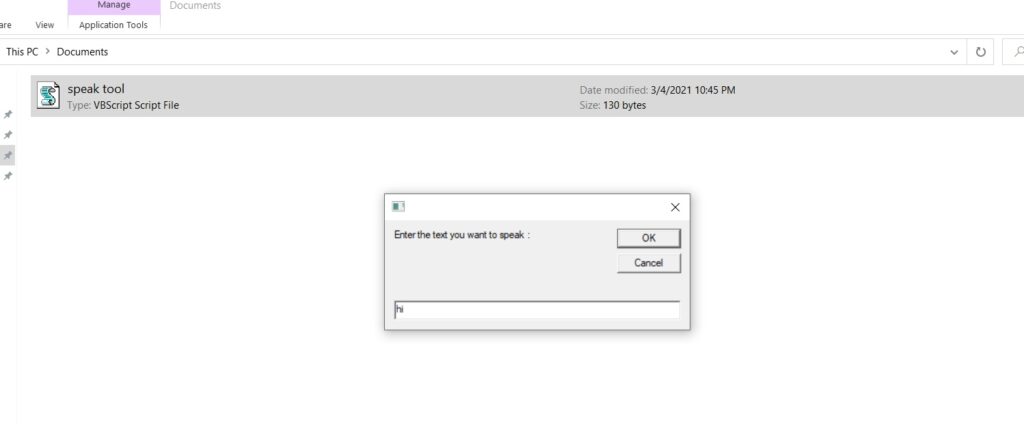
Go to the saved location and see if a .vbs file has been created as above.

4th Step
Type the required text and click Ok.