
“Your storage is almost full” is one of the most stressful notifications on Android – because your photos are your memories. The good news: you can usually free up several GB in Google Photos without deleting anything you care about. The key is knowing what actually uses your storage and cleaning up in the right order.
Quick answer
First, understand the two kinds of “storage”
This confusion causes most mistakes, so it’s worth one minute:
- Google account storage (cloud): your free 15 GB is shared between Google Photos, Gmail and Google Drive. When this is full, Google says you can’t back up new photos, can’t upload to Drive, and can’t send or receive email in Gmail.
- Phone storage: the internal memory of your phone. When this is full, your phone gets slow and you can’t take new photos or install apps.
Deleting a photo in Google Photos removes it from both the cloud and your phone. The Free up space button only removes the phone copy of photos that are already backed up. Choose the fix that matches the problem.
What counts toward your Google storage?
- Photos and videos backed up in Original quality – they count, no matter when they were uploaded.
- Photos backed up in High quality (now called Storage saver) before 1 June 2021 do not count. Anything after that date counts.
- Photos you save from someone else’s shared album count toward your storage (see how saving from shared albums works).
- Your Gmail emails and attachments, and everything in Google Drive, including WhatsApp backups.
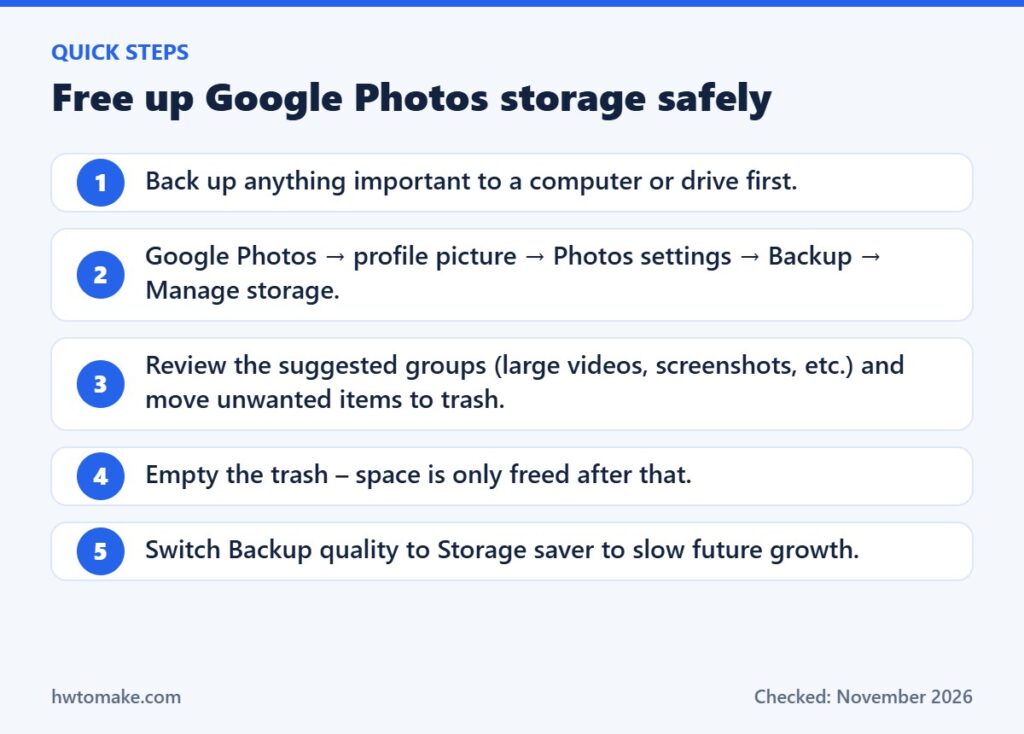
Step 1: Make a safe copy first
Before deleting anything, download the photos you can’t live without. The easiest way is Google Takeout (takeout.google.com): choose only Google Photos, select the albums you want and download the ZIP files to a computer or external hard drive. Google notes that permanently deleted items can’t be recovered, so this step is your safety net.
Step 2: Open Manage storage
- Open the Google Photos app.
- Tap your profile picture at the top right.
- Tap Photos settings → Backup → Manage storage.
At the top you see how much storage you’re using. Below, Google Photos suggests groups of items to review – for example large photos and videos, screenshots or blurry photos (the categories depend on your library).
Step 3: Remove the easy wins
- Large videos: one 5-minute 4K video can be bigger than 1,000 photos. Keep the special ones and delete accidental recordings.
- Screenshots: old receipts, chats and memes add up quickly.
- Blurry and duplicate shots: when you took 10 photos of the same moment, keep the best one or two.
Tap a group, tap Select, choose the items and tap Move to trash.
Step 4: Empty the trash
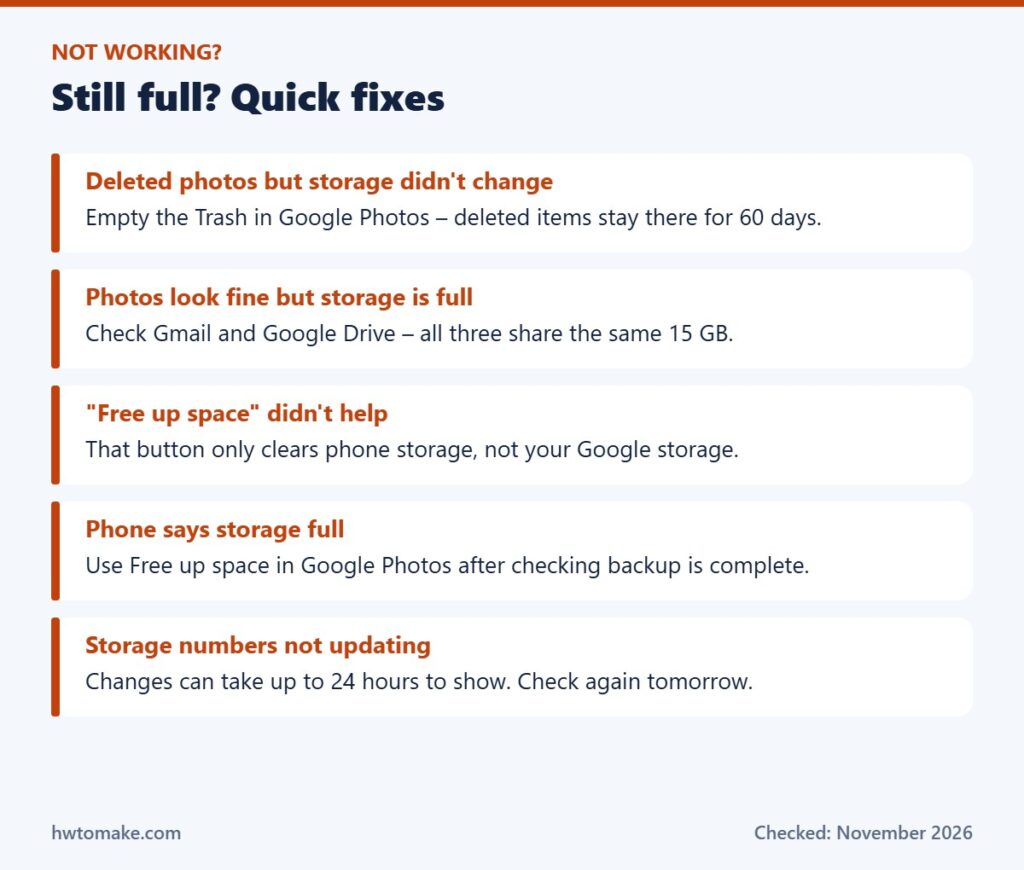
This step is easy to forget. Deleted photos sit in the Trash (in Collections) for about 60 days and still use space. Open the trash, check there’s nothing you need, then tap Empty trash. Storage figures can take up to a day to update.
Step 5: Clean Gmail and Google Drive too
- Gmail: search
has:attachment larger:10Mand delete old emails with big attachments. Empty Spam and Bin. - Google Drive: open Storage in the Drive menu to sort files by size. Old WhatsApp backups of previous phones can be very large.
Step 6: Stop it filling up again
- Switch to Storage saver: Photos settings → Backup → Backup quality → Storage saver. New photos are slightly compressed (fine for viewing and normal prints) and use much less space.
- Turn off backup for WhatsApp and screenshot folders: in Backup settings, check which device folders are backed up and switch off the ones you don’t need.
- Check storage once a month: a 5-minute review stops the problem building up again.
If your phone storage is full (not Google storage)
- Confirm backup is complete (no “Backing up” message in Google Photos).
- Tap your profile picture and choose Free up space.
- Check the amount and confirm.
Your photos stay in Google Photos and you can still see them in the app when you’re online. Google notes that items newer than 30 days may stay on the phone, and that removed items won’t show in your phone’s own Gallery app.
Still showing full?
FAQ
What happens if I stay over my storage limit?
Google says content may be deleted if you are over your limit for two years or more. New backups stop immediately, so fix it sooner rather than later.
Should I buy more storage?
If you have many years of photos and videos, a small Google One plan can be cheaper than the time spent cleaning. Try the steps above first – many people free enough space without paying.
Is it safe to delete photos from my phone’s Gallery app?
Only if they are already backed up – anything deleted from the phone without a backup can’t be recovered. The Free up space button is the safer choice, because it only removes photos that Google Photos has already backed up.
Last checked against the Google Photos Help Center (“Manage your storage” and “Free up space on your device”) in November 2026.