
WhatsApp is the easiest way to share photos with friends and family – but it shrinks them to save data. Group photos look soft, text in documents becomes hard to read, and printed photos look grainy. WhatsApp’s HD option fixes most of this, and there is a simple trick for sending photos in full original quality.
This guide shows how to send HD photos on Android, how to make HD the default, and what to do when the HD button doesn’t appear.
Quick answer
Standard vs HD vs Document: what’s the difference?
- Standard: the default. Photos are resized to roughly 1600 pixels on the long side. Fine for viewing on a phone.
- HD: photos are sent at roughly 4096 pixels on the long side – much sharper, but files are larger and use more data.
- Document: the photo file is sent exactly as it is, with no compression at all. Best for printing, editing or official documents.
Video works in a similar way: standard is low resolution, HD sends at 720p. Even HD does not send 1080p or 4K videos at full quality – use a document or Google Drive for that.
How to send one photo in HD
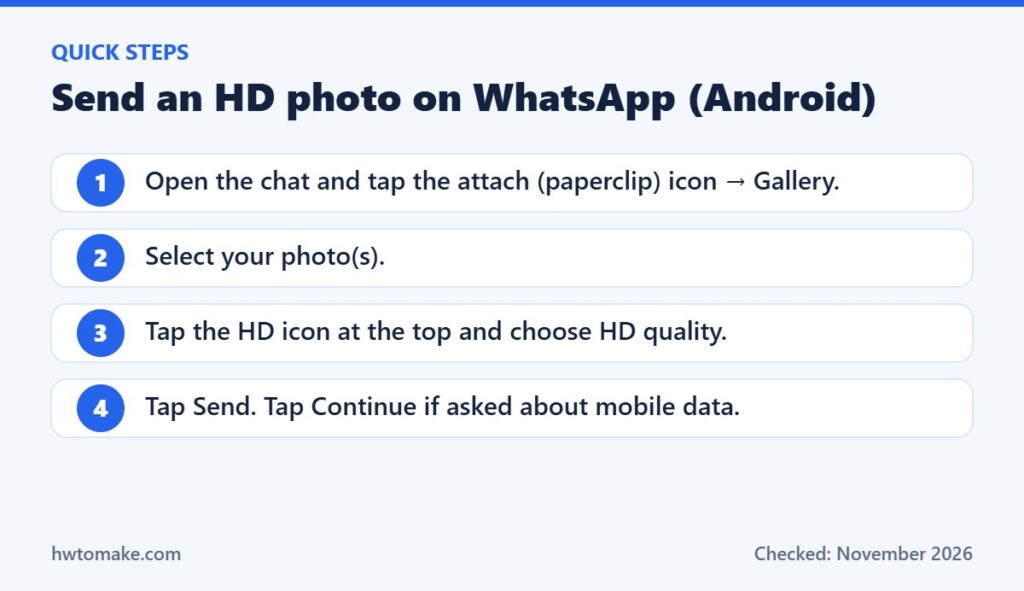
- Open the chat or group.
- Tap the attach (paperclip) icon, then Gallery. (Or tap the camera icon to take a new photo.)
- Select one or more photos.
- Tap the HD icon at the top of the screen and choose HD quality.
- Add a caption if you like and tap Send. If you are on mobile data, WhatsApp may ask you to confirm – tap Continue.
Photos sent in HD show a small HD label in the chat.
How to make HD the default for every photo
If you always want sharp photos, you don’t need to tap HD every time:
- Open WhatsApp and go to Settings (three dots at the top right on Android).
- Tap Storage and data.
- Under Media quality, tap Upload quality.
- Choose HD quality.
Tip for small data packages: HD photos are several times bigger than standard ones. If you are on a limited mobile data plan, keep the default on Standard and choose HD only for photos that really matter.
How to send photos in original quality (as a document)
- In the chat, tap the paperclip icon and choose Document.
- Tap Browse (or open the menu) and go to your Pictures or DCIM/Camera folder.
- Select the photo(s) and tap Send.
The receiver taps the file to open it and can save it to their gallery. This is the method to use for passport photos, scanned documents or pictures you want to print. Sending to an iPhone user? See our guide on sending photos from Android to iPhone without losing quality.
Why is the HD option not showing?
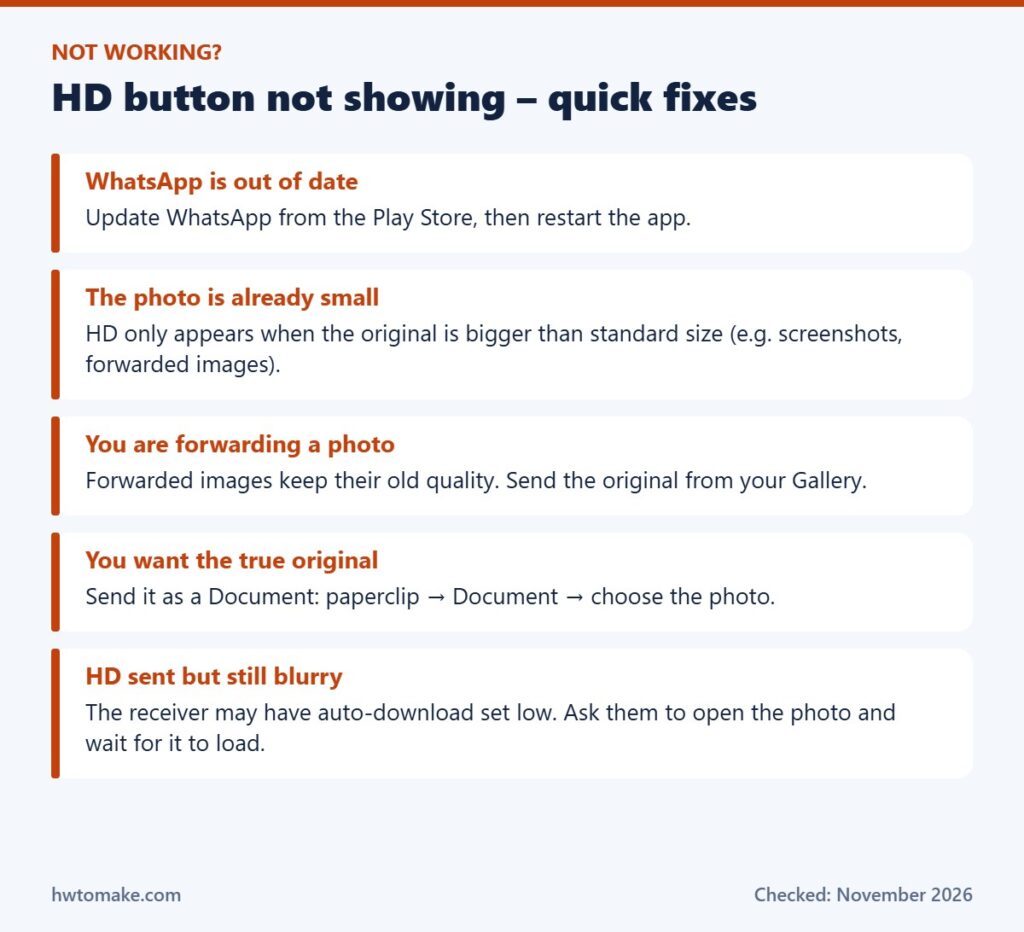
1. Your WhatsApp is out of date
Open the Play Store, search for WhatsApp and tap Update if you see it. The HD option and the default upload-quality setting only exist in newer versions.
2. The photo is too small to need HD
WhatsApp only shows the HD choice when the photo is larger than the standard size. Screenshots, images downloaded from social media and photos you received on WhatsApp are often already small, so there is nothing to upgrade.
3. You are forwarding the photo
When you forward a photo, WhatsApp sends the copy it already has. If that copy was standard quality, forwarding can’t make it HD. Ask the original sender for the full photo, or send it from your own gallery.
4. You are using WhatsApp Web or an old phone
Options can look different on WhatsApp Web, WhatsApp Business or very old Android versions. For guaranteed quality, use the Document method, which works everywhere.
How much mobile data does HD use?
The exact size depends on your camera and the photo, but as a rough guide a standard WhatsApp photo is usually a few hundred kilobytes, while an HD photo is often 1–3 MB, and an original-quality document can be bigger again. Sending 50 HD photos from a party can easily use 100 MB or more of mobile data.
To keep data costs down:
- Send HD photos on Wi-Fi when you can.
- In Settings → Storage and data, set Media auto-download so photos only download automatically on Wi-Fi. You can still tap any photo to download it on mobile data.
- For large groups of photos, share one Google Photos album link instead of dozens of separate images – see our guide to Google Photos shared albums.
Tips for photos that look good on the other phone
- Send from the original photo in your Gallery, not from a screenshot of the photo.
- Avoid editing and re-saving the same photo many times in different apps – each save can lose a little quality.
- For photos with small text (receipts, notices, documents), use the Document method so the text stays sharp when someone zooms in.
FAQ
Does the receiver need to do anything to see HD?
No. They just open the photo. On slow connections it may show a blurry preview for a few seconds while the full HD version downloads.
Does sending HD use more storage?
Yes – on both phones, and in your WhatsApp backup on Google Drive. Clean up large chats now and then from Settings → Storage and data → Manage storage.
Are HD photos still end-to-end encrypted?
Yes. Quality settings do not change WhatsApp’s encryption.
Last checked in November 2026. Menu names may change slightly with WhatsApp updates.