After a trip, a wedding or a family function, everyone has photos on a different phone. A Google Photos shared album puts them all in one place. You choose the photos, invite people, and – if you want – let everyone add their own pictures. It works on any Android phone, and your friends with iPhones or laptops can join too.
This guide covers the exact steps in the Google Photos app on Android, how to share with people who don’t use Google, and how to fix the problems people run into most often.
Quick answer
What you need
- The Google Photos app (pre-installed on most Android phones; otherwise free on the Play Store). Update it first so the menus match this guide.
- A Google Account (the same one you use for Gmail or the Play Store).
- An internet connection – Wi-Fi is best if you are sharing many videos.
Your friends do not need Android. Anyone with the link can open the album in a web browser, including on an iPhone.
Step 1: Select the photos for your album
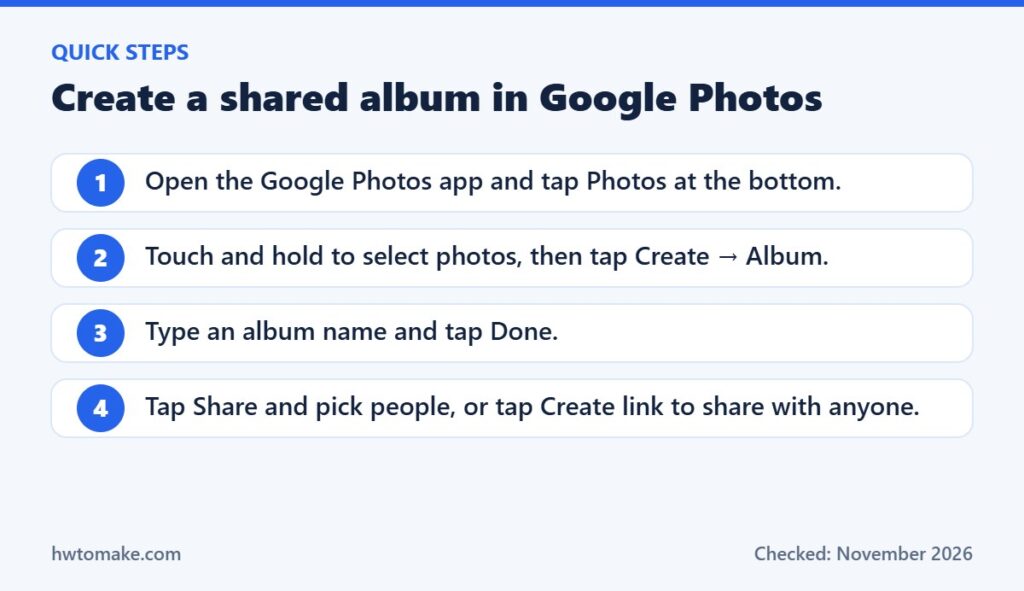
- Open Google Photos and tap Photos at the bottom.
- Touch and hold the first photo you want. A tick appears.
- Tap every other photo or video you want to include. You can drag your finger across a row to select many at once.
Only one photo? Open it, tap Add, then Album → New album.
Step 2: Create the album
- With your photos selected, tap Create, then Album.
- Type a clear title, for example “Kandy Trip – Dec 2026”. A good name helps people find it later in their list of shared albums.
- Tap Done.
At this point the album is still private – only you can see it.
Step 3: Share the album
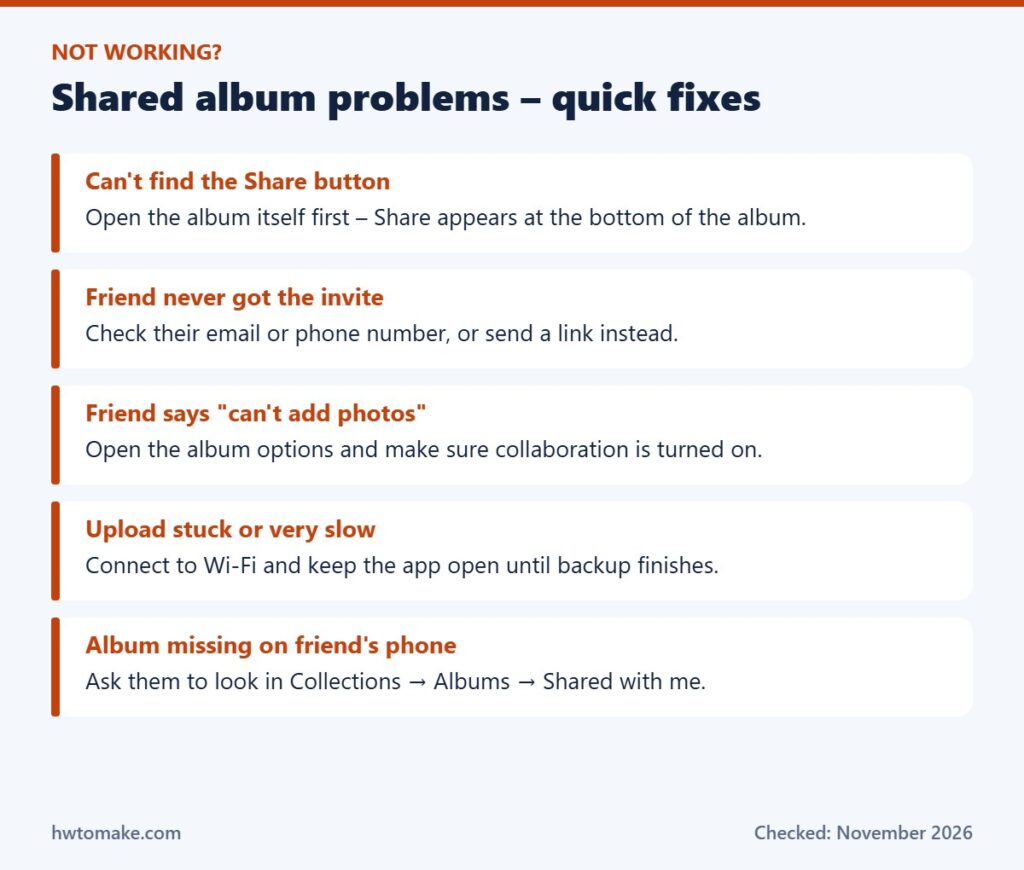
Open the album and tap Share at the bottom. You have two choices:
- Share with people: pick contacts who use a Google Account, or search by email address or phone number. They get an email and a notification in the Google Photos app.
- Create link: tap Create link and send it through WhatsApp, Messenger, SMS or email. This is the easiest option for big groups or for people who don’t use Google Photos.
Be careful with links: according to Google, anyone who has the link can view the album and add to it. Only send it to people you trust, and don’t post it in public groups.
Step 4: Let others add their photos (or stop them)
Shared albums are most useful when everyone adds their own pictures. Open the album, tap the three dots (More) at the top right and look at the album Options. Here you can control whether other people can add photos and comments. Turn collaboration off if you want a “view only” album – for example, for professional photos from a photographer.
Step 5: Add more photos later
Open the album and tap the add photos icon, choose the new pictures and tap Add. Everyone in the album sees them automatically – you don’t need to share again.
How your friends find the album
People you invite will see the album in Collections → Albums → Shared with me in their Google Photos app, and on their Updates page. Friends who received a link can just tap it to open the album in a browser or in the app.
Using an iPhone? Apple has its own system with slightly different steps – see our guide on how to create a shared album on iPhone.
Leaving or stopping a shared album
- Leave an album someone else shared: open it, tap More at the top right, then Leave album. Google notes that the photos, videos, comments and likes you added are removed when you leave.
- Stop sharing your own album: open the album, go to its sharing options and turn off link sharing or remove people. If you delete the album, the photos stay in your own library but other people lose access.
Common problems and fixes
“I don’t see Create or Album”
Update the Google Photos app from the Play Store. Some phones (for example, certain Xiaomi, Redmi and Samsung models) use their own Gallery app as the default – make sure you are inside the actual Google Photos app, not the phone’s Gallery.
“The photos look blurry for my friends”
Photos may load in lower resolution at first, especially on slow mobile data. Tap the photo and wait a few seconds, or download it to see the full quality.
“Shared album photos are filling my storage”
Photos that other people add don’t use your storage while they stay in their album. But if you save them to your own library, Google says those copies count toward your storage.
Shared album vs sharing photos one by one
- Shared album: best for events and trips – one link, everything in one place, and people can add photos for weeks or months.
- Sending photos directly (WhatsApp, Quick Share): fine for 2–3 photos, but quality often drops and the photos end up scattered across chats.
FAQ
Is a Google Photos shared album free?
Yes. Creating and sharing albums is free. Photos you upload to your own account count toward your Google storage (15 GB free, shared with Gmail and Drive).
Can iPhone users join a Google Photos shared album?
Yes. They can open the link in Safari or install the free Google Photos app for iPhone and sign in with a Google Account.
Can I see who added each photo?
Yes. Each photo in a shared album shows the name or profile picture of the person who added it.
Last checked against the Google Photos Help Center in November 2026. Menu names can change slightly between app updates and phone brands.