Shared albums are great until the person who created them deletes the album, removes you, or leaves Google Photos. When that happens, the photos disappear from your phone too. If there are pictures you want to keep forever – a wedding, a trip, your child’s school event – you should save your own copy.
This guide shows how to save one photo, many photos, or a whole album from a Google Photos shared album on Android, and explains the important difference between Save and Download.
Quick answer
Save vs Download: what’s the difference?
Google Photos gives you two ways to keep a photo, and people often mix them up:
- Save (add to your library): makes a copy in your Google Photos account in the cloud. You can see it on any device where you sign in. It counts toward your Google storage.
- Download: saves the file to this phone’s storage, so it appears in your phone’s Gallery and works without internet. It uses phone storage, not Google storage (unless it gets backed up again).
For important photos, the safest choice is to do Save – that way the photo is in your account even if you lose or change your phone.
Step 1: Find the shared album
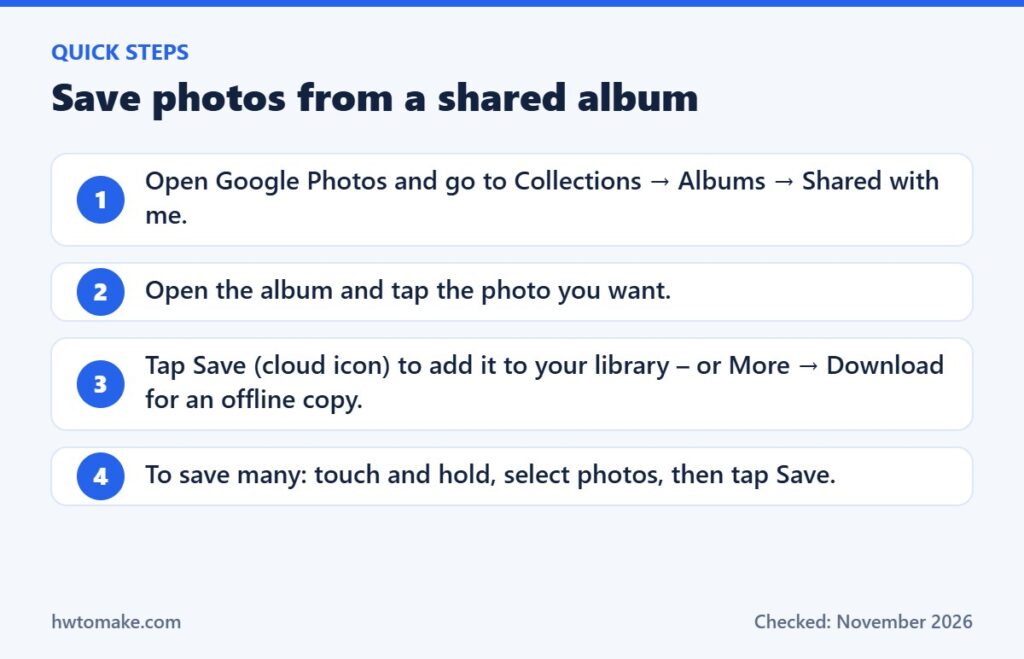
- Open the Google Photos app.
- Tap Collections, then Albums.
- Open Shared with me and tap the album.
Don’t see it? Check your Updates page (the bell or notifications area) or open the original link you were sent. New to shared albums? See how to create a shared album in Google Photos.
Step 2: Save a single photo
- Tap the photo to open it full screen.
- Tap the Save icon (a cloud with a down arrow). If you don’t see it, tap the three dots (More) to open the menu.
- To put the file on your phone as well, tap More → Download.
Videos work the same way. Large videos may take a minute to download on mobile data.
Step 3: Save many photos at once
- Inside the album, touch and hold the first photo.
- Tap the other photos you want, or drag across rows to select quickly.
- Tap Save (or the cloud icon) at the top. The selected photos are added to your library.
Save a whole album (fastest way: use a computer)
If the album has hundreds of photos, a computer is much faster:
- Go to photos.google.com and sign in with the same Google Account.
- Open Sharing and click the album.
- Click the three dots (More options) at the top right, then Download all.
- Google creates a ZIP file. Open it to get all the photos, then copy them to your computer or an external drive.
Tip: a ZIP of a big album can be several GB. Make sure the computer has enough free space before you start.
How to check that your copy is safe
- Open the Photos tab in Google Photos and scroll to the date the photo was taken. A saved photo appears there like your own photos.
- For downloaded copies, open your phone’s Gallery or Files app and look in the Download or Pictures folder.
Common problems and fixes
Do saved photos use my storage?
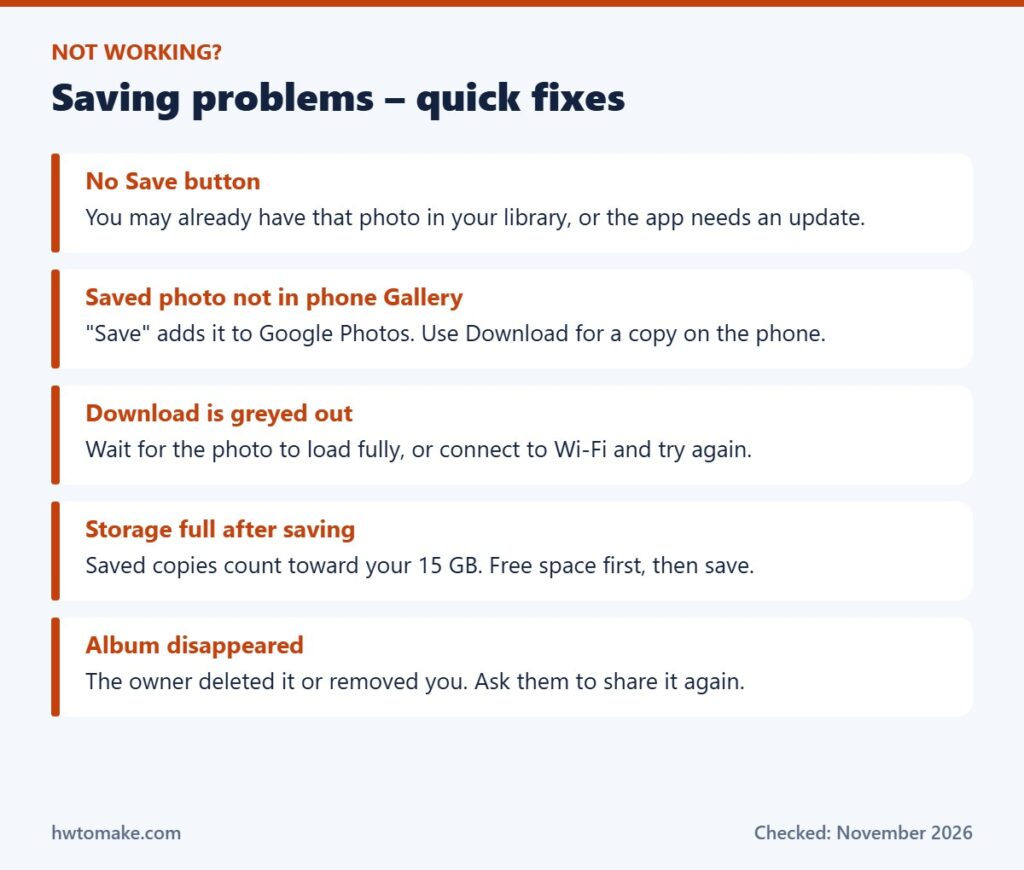
Yes. Google’s Help Center says that photos you save from someone else’s share count toward your storage quota (except some partner-sharing cases). If your 15 GB is almost full, clean up first.
Will the owner know that I saved a photo?
Saving a copy does not change the album, and the photo stays in the album for everyone else.
Before you save: a few good habits
- Ask before sharing further. Photos in a shared album often include other people’s children or private family moments. Saving for yourself is normal; posting them publicly without asking is not.
- Save soon after an event. Album owners often clean up or delete albums months later. Saving the photos you love the same week avoids surprises.
- Make a “favourites” album. After saving, select the photos in your library and tap Add to → Album to keep them together, so they don’t get lost among thousands of other pictures.
- Keep a second copy of very important photos. For weddings and once-in-a-lifetime events, download the full album to a computer or external drive once a year, in addition to Google Photos.
Using Samsung Gallery or Xiaomi Gallery instead?
Many phones come with their own Gallery app. Shared albums from Google Photos only appear inside the Google Photos app, not in the phone’s Gallery – that is why people sometimes think the album has disappeared. After you Download a photo, it will show up in your Gallery app as well, usually in an album called Download or Restored.
FAQ
What happens to my saved photos if the album is deleted?
Photos you saved to your library or downloaded to your phone stay with you. Only the shared album itself disappears.
Can I save photos from a shared album on iPhone?
Yes – the Google Photos app for iPhone has the same Save and Download options. For Apple’s own shared albums, the steps are different; see our iPhone shared album guide.
Does saving reduce the photo quality?
No. You get the version that was uploaded to the album. If the person uploaded in “Storage saver” quality, that is the best quality available.
Last checked against the Google Photos Help Center in November 2026. Button names may differ slightly between app versions.