Android and iPhone don’t always talk to each other easily. Send a photo the wrong way and it arrives blurry, compressed or not at all. The good news: there are several free ways to move photos from an Android phone to an iPhone in good quality, and one of them now works almost like AirDrop.
Below are the five best methods, when to use each one, and how to keep your photos sharp.
Quick answer: which method should you use?
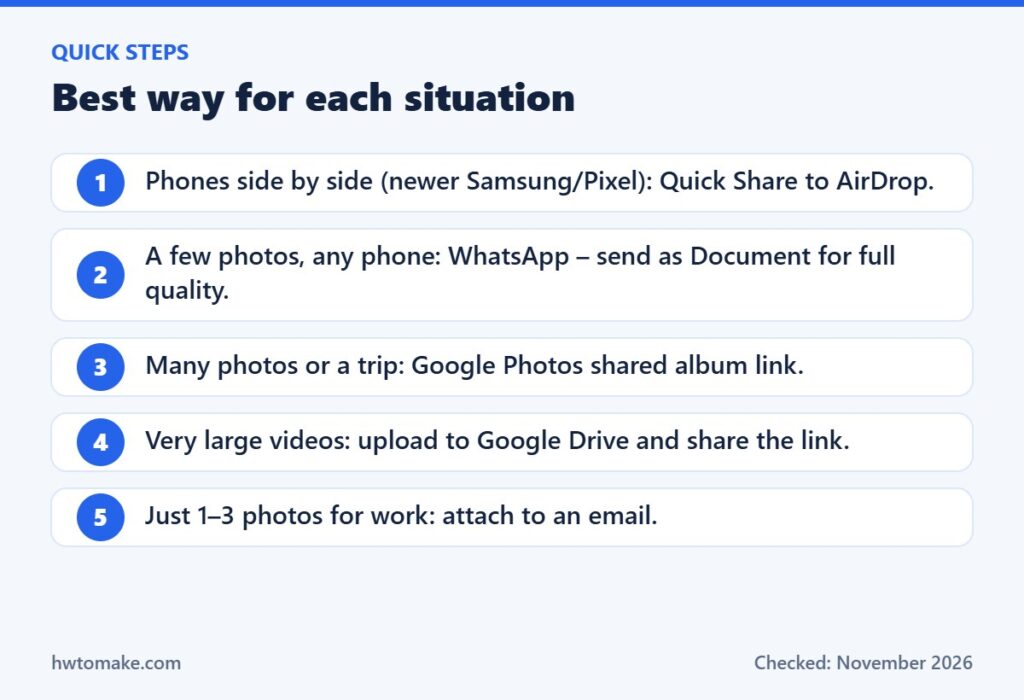
Method 1: Quick Share to AirDrop (newer Android phones)
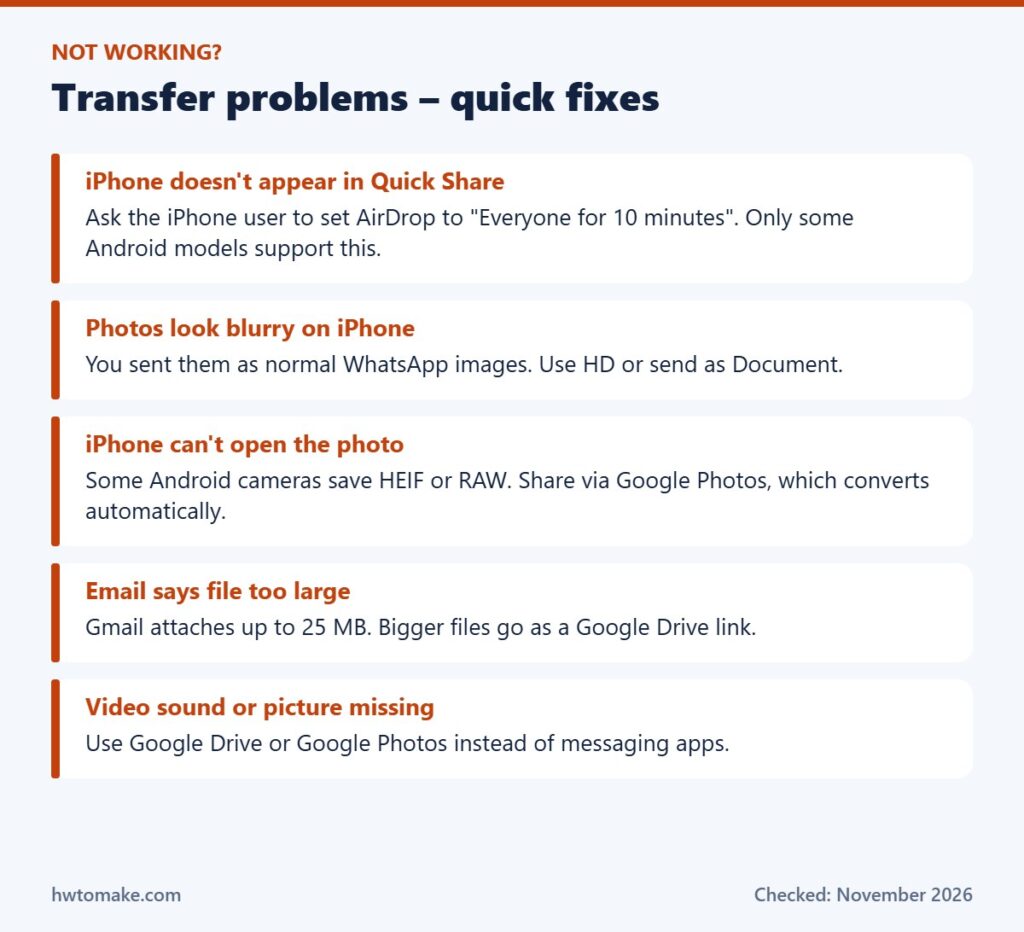
In 2026 Google made Quick Share work with Apple’s AirDrop on a growing list of Android phones. As of mid-2026 the list included recent Google Pixel models (Pixel 8a, Pixel 9 and 10 series), Samsung Galaxy S24, S25 and S26 series and the latest foldables, plus some new OnePlus, OPPO, Vivo, Xiaomi and HONOR flagships. Check your phone’s Quick Share settings – the list keeps growing.
- On the iPhone: open Control Center, press and hold the network box, tap AirDrop and choose Everyone for 10 minutes.
- On the Android phone: select the photos in Gallery or Google Photos, tap Share → Quick Share.
- Choose the iPhone from the list. The iPhone user taps Accept.
Pros: full quality, no internet needed, very fast. Cons: only works on supported phones, and the two phones must be close together.
Method 2: WhatsApp – but send as a Document
Almost everyone has WhatsApp, which makes it convenient. The problem is that normal WhatsApp photos are compressed. You have two better options:
- HD: after selecting a photo, tap the HD icon at the top before sending. Much better than standard, but still slightly compressed.
- Document (original quality): tap the attach (paperclip) icon → Document, browse to your photos and send. The file arrives exactly as it was taken.
On the iPhone, the person opens the document and taps Share → Save Image to put it in their Photos app.
Method 3: Google Photos shared album (best for many photos)
For a trip, a function or anything over about 20 photos, a shared album is the cleanest option. Create the album on your Android phone, tap Share → Create link, and send the link. The iPhone user can open it in Safari or in the free Google Photos app for iPhone and save what they want.
Full steps: how to create a shared album in Google Photos. To keep copies, they can follow our guide on saving photos from a shared album.
A bonus: Google Photos handles file formats for you, so the iPhone user won’t get a file they can’t open.
Method 4: Google Drive (best for big videos)
- Open the Google Drive app on Android and tap + → Upload.
- Pick the photos or videos and wait for the upload to finish.
- Touch and hold the file or folder, tap Share (or Copy link) and set access to “Anyone with the link”.
- Send the link. The iPhone user opens it and taps Download.
Drive keeps the original file, so it is ideal for long 4K videos that messaging apps would shrink.
Method 5: Email (small numbers of photos)
For one or two photos – for example, documents for work – simply attach them to an email. Gmail allows attachments up to 25 MB per email; larger files are automatically added as a Google Drive link instead.
Comparison at a glance
- Quick Share → AirDrop: original quality · needs supported phones nearby · no internet needed
- WhatsApp Document: original quality · works anywhere · uses mobile data
- WhatsApp HD: good quality · quick · slight compression
- Google Photos album: good quality · best for many photos · needs Google account to save to library
- Google Drive: original quality · best for large videos
- Email: original quality · only small files
Common problems and fixes
Which method to use: real-life examples
- Sending family photos to relatives abroad with iPhones: create a Google Photos shared album and send the link on WhatsApp. They can open it from anywhere, and you can keep adding photos.
- Passport or visa photos for an iPhone user: send as a WhatsApp Document or by email so the exact file arrives without compression – size and sharpness matter for official photos.
- A friend sitting next to you at a party: Quick Share to AirDrop if your phone supports it; otherwise WhatsApp HD.
- A 15-minute 4K video of a performance: Google Drive – messaging apps will shrink it badly.
Keep your photos private
- Links from Google Photos and Google Drive work for anyone who has them. Send them in private chats, not public groups.
- When you are finished, turn off link sharing for the album or Drive file.
- Photos taken with location turned on contain GPS data. If you don’t want to share where a photo was taken, use WhatsApp standard/HD (which strips most of this) or remove the location in Google Photos before sharing.
FAQ
Can I use Bluetooth to send photos from Android to iPhone?
No. iPhones don’t accept file transfers over normal Bluetooth from Android phones. Use one of the methods above instead.
What about moving everything to a new iPhone?
If you are switching phones completely, Apple’s free Move to iOS app transfers photos, contacts and messages during iPhone setup. The methods in this guide are for sharing photos with another person.
Which method keeps the date and location information?
Quick Share, WhatsApp Document, Google Drive and email send the original file, which keeps the date and (if it was turned on) location data. Standard WhatsApp photos usually lose this information.
Last checked in November 2026 against Google, WhatsApp and Apple help pages and news coverage of Quick Share–AirDrop support. Supported phone lists change often.